Free Cornell notes template for the Kobo Libra Colour
1264 × 1680 px
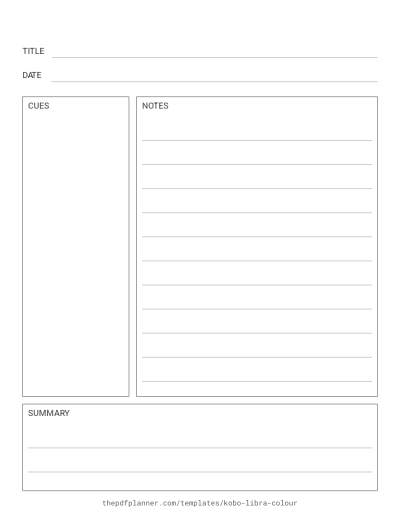
This free Cornell notes template for the Kobo Libra Colour is one page with a 2.9 cm cue column, 11 note lines and a summary box, drawn at 1264 × 1680 px for its screen, 300 ppi in black and white. It comes as a PDF you open from My Books, with no dates and no links.
Free for personal use. Not for resale or redistribution.
On this page
The page follows the Cornell layout: a blank cue column on the left for questions and keywords, ruled lines on the right for the notes themselves, and a summary box across the bottom to fill in afterwards. The cue column takes 30% of the width and the summary 22% of the height.
| Cue column | 2.9 cm wide |
|---|---|
| Note lines | 11, 6.4 mm apart |
| Summary box | 2.3 cm tall |
| At the top | Title, Date |
| Pixels | 1264 × 1680 px, portrait |
| PPI | 300 |
| Page size | 107 × 142 mm |
| Safe margin | top 8, sides 6 mm, estimated |
| Formats |
Counts are taken from the file itself. Screen figures: ereader.kobo.com.
2027 planner for the Kobo Libra Colour
Build your own: 14 weekly layouts, your start month, your holidays.
See the 2027 planner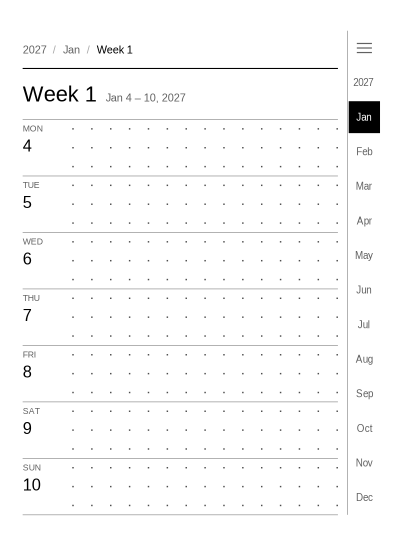 Rows
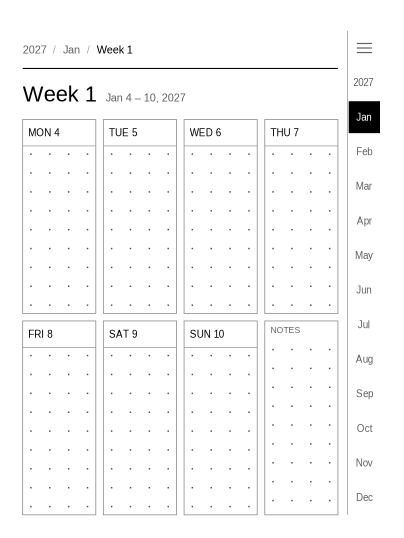 Plan, 4 columns
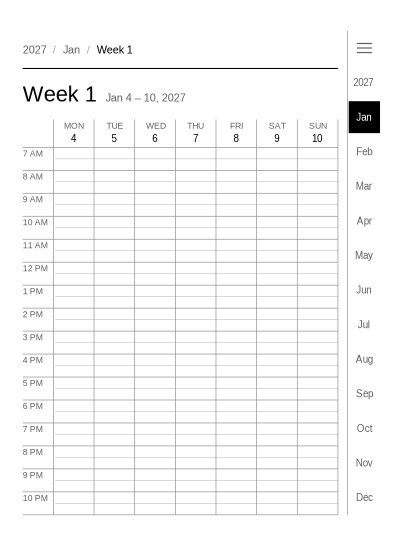 Vertical
Need more than one page? Pick “Cornell notes” as a section in Linked Notebook: pages like this one in a single PDF for your Kobo Libra Colour, with a contents page and an index you tap to open each page. Up to 8 sections, no dates, $9.99 once.
Build a linked notebookHow to load it on your Kobo Libra Colour
- Copy it over USB. Connect the Kobo to your computer, tap Connect, drag the PDF onto the KOBOeReader drive, then eject it.
- Or use Dropbox. Link Dropbox at kobo.com/dropbox, put the PDF in Apps, Rakuten Kobo, then sync the Kobo.
- Or use Google Drive. Link Google Drive at kobo.com/googledrive, put the PDF in the Rakuten Kobo folder, then sync. This needs software 4.37 or later.
- Write on it. Open the planner from My Books and write anywhere on the page with the Kobo Stylus.
How to load a PDF planner on a Kobo: full guide and sources
The sources for these files are on the Kobo Libra Colour templates page.
Questions about this template
What size is the Cornell notes template for the Kobo Libra Colour?
1264 × 1680 px in portrait at 300 ppi, the screen's own resolution, which makes a page of 107 × 142 mm.
The page keeps 8 mm at the top and 6 mm at the sides clear for the toolbar and has a 2.9 cm cue column, 11 note lines and a summary box.
How wide is the cue column?
2.9 cm on the Kobo Libra Colour, 30% of the writing width. The notes column beside it has 11 ruled lines and the summary box below is 2.3 cm tall.
Can I write on these templates on my Kobo Libra Colour?
Yes. Copy the PDF onto the KOBOeReader drive over USB, or put it in the Rakuten Kobo folder of a linked Dropbox or Google Drive and sync. Open it from My Books and write anywhere on the page with the Kobo Stylus.
Kobo says strokes on a PDF without DRM are saved into the PDF. Selecting and highlighting text in a PDF is not supported, which a blank template does not need.
More Kobo Libra Colour templates
Cornell notes template for other tablets
- reMarkable 2
- reMarkable Paper Pro
- reMarkable Paper Pro Move
- reMarkable Paper Pure
- Kindle Scribe
- Kindle Scribe 11" (2025)
- Kindle Scribe Colorsoft
- Supernote Manta
- Supernote Nomad
- BOOX Note Air5 C
- BOOX Go 10.3
- BOOX Note Max
- BOOX Note Air4 C
- BOOX Go 7 and Go Color 7
- Kobo Elipsa 2E
- Kobo Sage
- Viwoods AiPaper
- Viwoods AiPaper Mini
- iFLYTEK AINOTE Air 2
- All tablets compared
Free for personal use. Not for resale or redistribution. Updated . The PDF Planner is independent and not affiliated with Kobo; the device name only says which screen the template fits.